Importing
Import files
- Open the page the new pages should go under.
- Choose ••• › Apps › Markup: Import…
- Choose a file, or a zip of files and folders.
- Check the preview. It shows every page and attachment that will be imported, as a tree.
- Choose Create new pages under this page, or, for files exported by Markup bridge, Update the pages the files were exported from. See Updating pages.
- Choose Import.
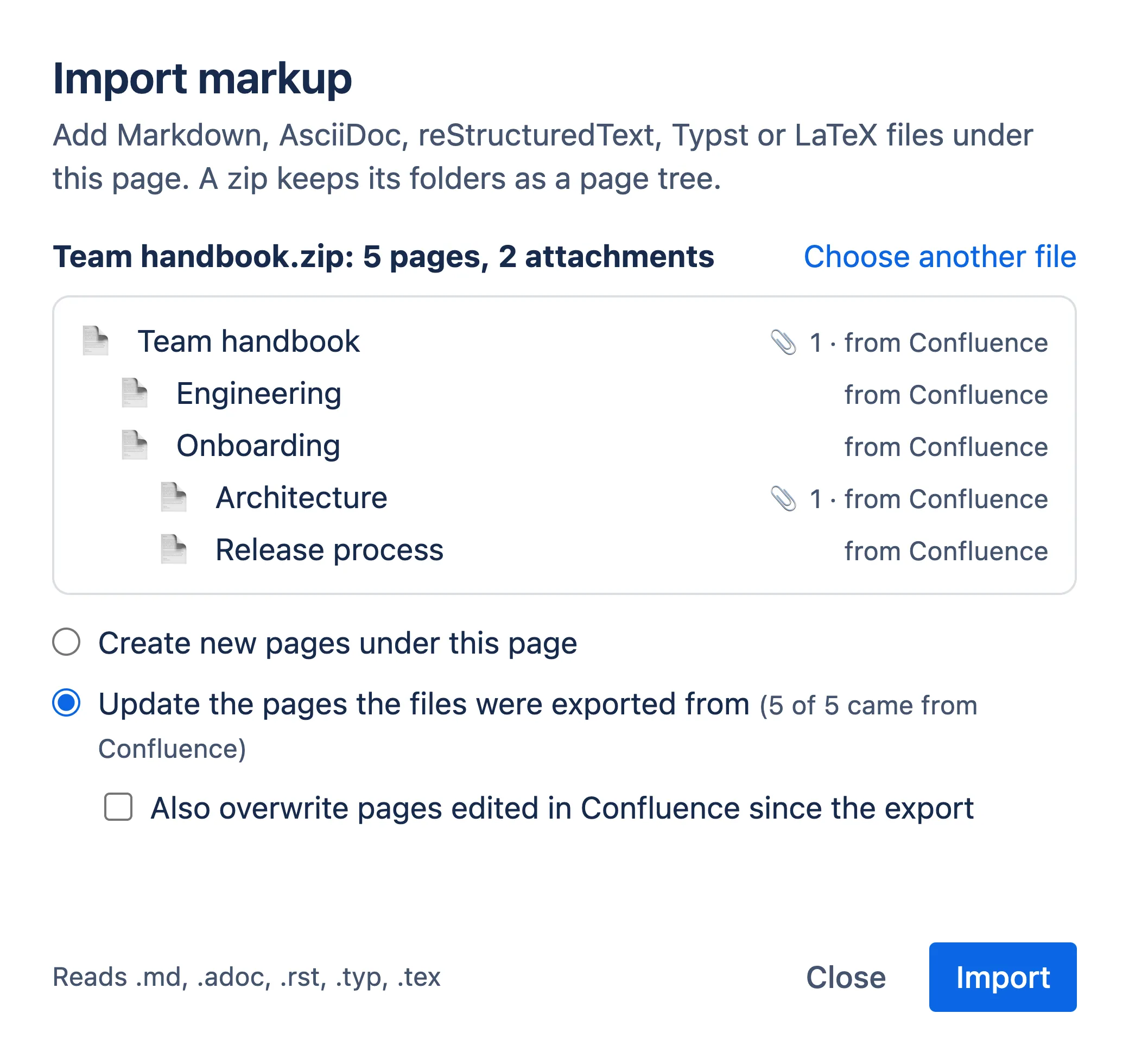
When the import finishes, the dialog shows how many pages were created and updated, and links to the first one.
Which files
| Format | Extensions |
|---|---|
| Markdown | .md, .markdown |
| AsciiDoc | .adoc, .asciidoc, .asc |
| reStructuredText | .rst, .rest |
| Typst | .typ |
| LaTeX | .tex, .latex |
Files don’t have to come from Markup bridge. A Markdown file from GitHub or a Sphinx .rst file
imports too.
A zip can mix formats, and can be up to 1 GB unpacked. Markup bridge skips the files it added to the
export itself (README.txt, confluence-export.json and the helper file), hidden files, and the
__MACOSX folder macOS adds to zips.
How files become pages
- Each file is a page. Its title comes from the title in the file’s header, or from the file name when there isn’t one.
- Each folder is a page with the folder’s name, holding the pages inside it. If there’s a file
with the same name next to the folder, such as
Guide.mdnext toGuide/, that file is the page. - Images a file shows are uploaded as attachments of its page. Images the file refers to that aren’t in the zip are reported in the preview.
- Other files in a page’s
_attachmentsfolder are attached to the page. - Links between imported files become links between the new pages.
- Images from websites that were downloaded during the export link to their website again.
Confluence page titles are unique within a space. When a page with the same title already exists, the imported page gets a number added, such as “Setup (2)”, and the dialog lists it.
Each page created or updated gets the version comment “Imported with Markup bridge”, so you can find it in the page history.
Interrupted imports
If an import stops part-way, because the dialog was closed or the connection dropped, run it again with the same files under the same page. The dialog says that an earlier import stopped, and carries on where it left off, without creating duplicate pages.
The progress is stored in your browser, so carry on in the same browser.